The brat font generator trend refuses to die, and honestly? Good. There is something perfect about a lime-green square with blurry black text that a million-dollar branding agency could never replicate. I spent an afternoon actually using the brat font generator on this site — typing real text, clicking every color, dragging every slider, downloading the actual files — so this isn’t another roundup written by someone who never opened the tool. Here’s what it does, what it gets right, and where it falls short.
What a brat font generator actually makes
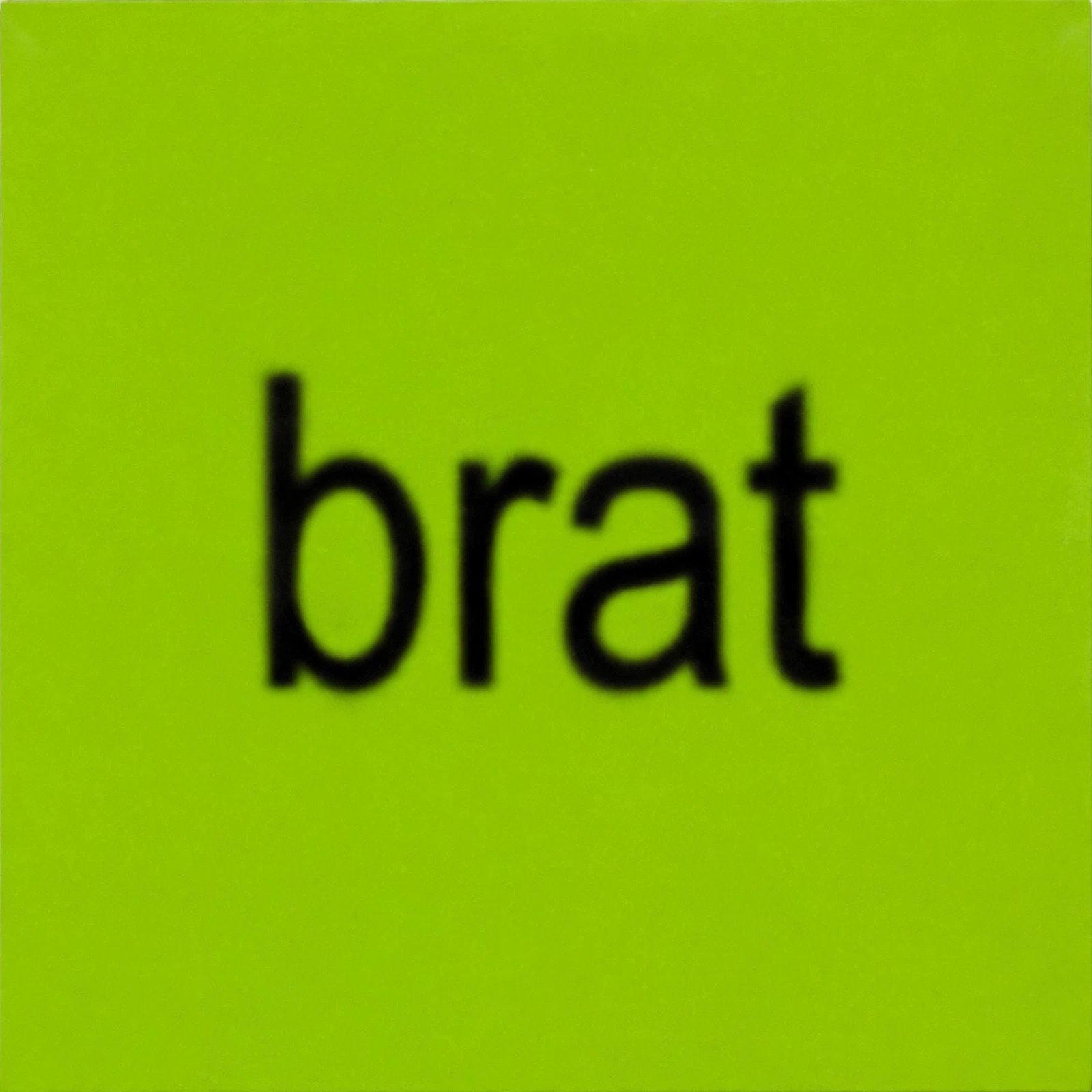
If you somehow missed 2024: Charli XCX (Brat) released an album called brat with a cover so aggressively plain it broke music Twitter. Lime green background. The word “brat” in a slightly blurry, cheap-looking sans-serif, sitting low and off-center. Designers lost their minds. Memers lost theirs harder. Within weeks the aesthetic was everywhere — profile pictures, protest signs, brand accounts embarrassing themselves.
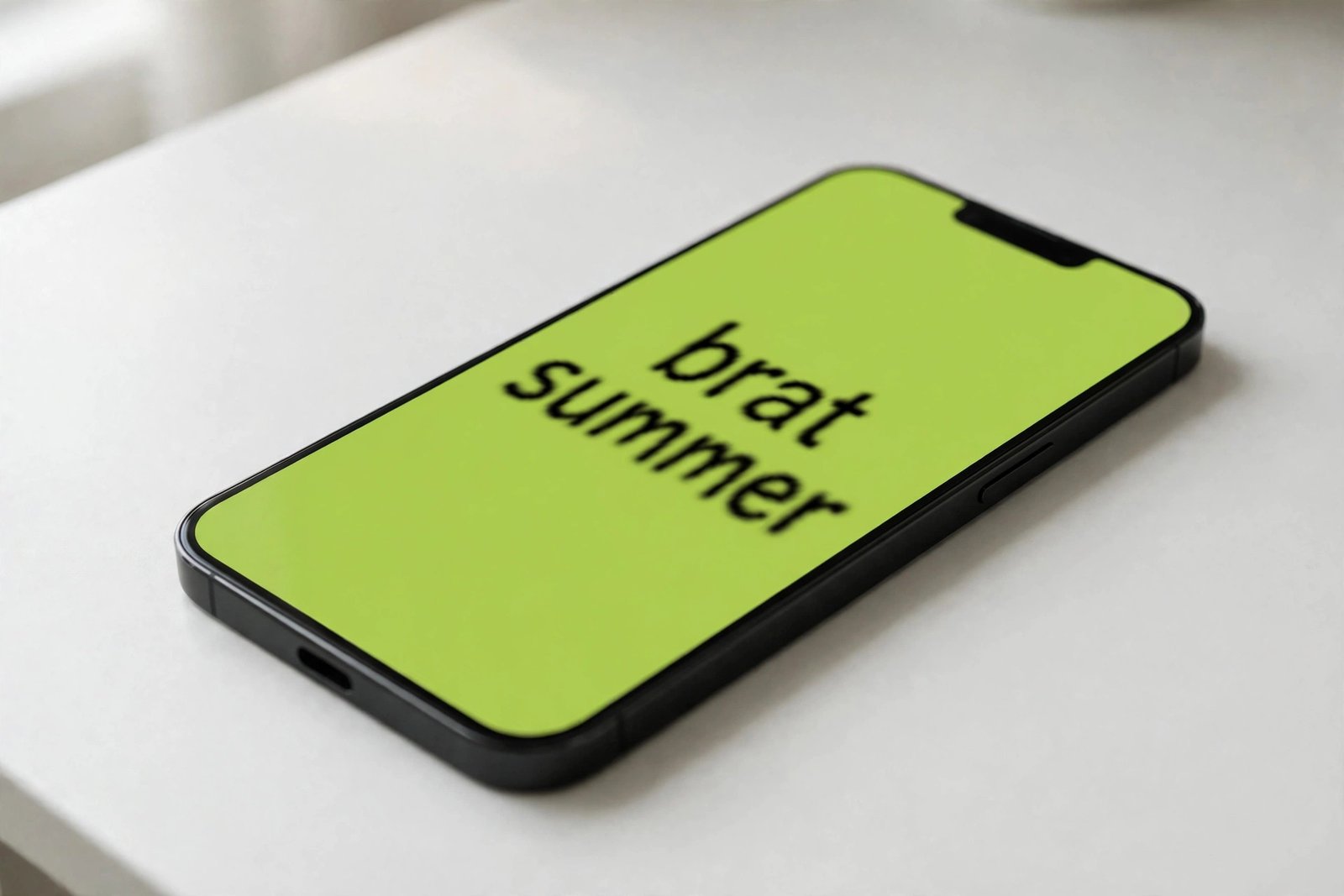
A brat font generator is just a tool that lets you make your own version: type any words, get them rendered in that same blurry lowercase style on that same confrontational green (or whatever color you pick). The whole joke — and the whole appeal — is that it looks like it took eleven seconds to make. Because it does.
I tested the tool on brratgenerator.com — here’s exactly what happened
Most “best brat font generator” articles describe tools the author clearly never touched. So let me be specific about what I did. I opened the generator, clicked into the black text field, and typed “brat summer” with real keystrokes. The character counter ticked up live — 11/50. Fifty characters is the hard cap; I tried pasting a longer sentence and it got chopped at exactly 50. Fair enough — the real album cover only fits one or two words anyway, and anything longer turns to mush at cover size.
The preview updates as you type, which sounds basic but matters: you see the layout shift in real time instead of pressing a “generate” button and waiting. Then I went through the customization options one by one:
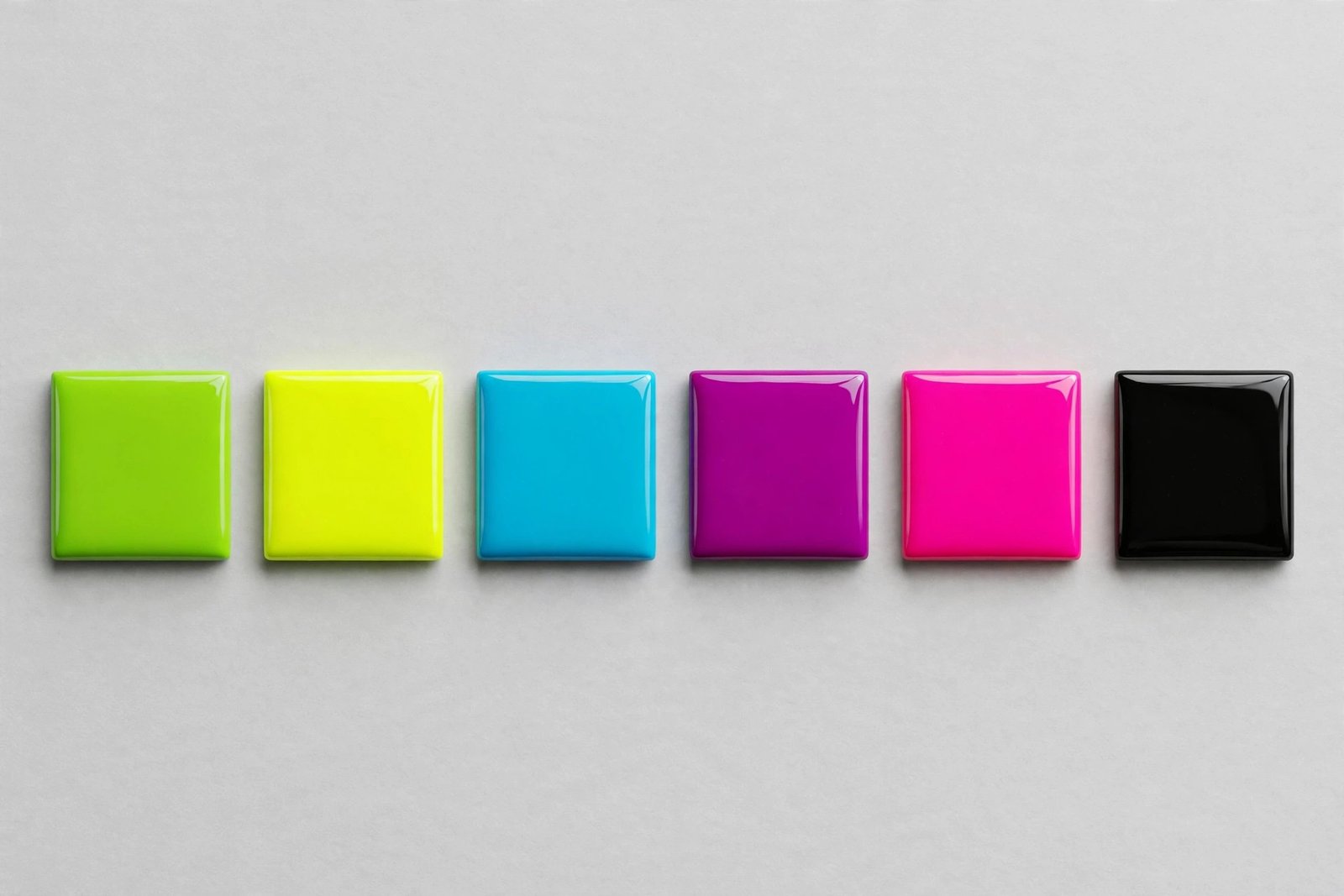
Color presets. Six swatches in a row: the signature brat green (#8ACE00), a yellower neon (#C7FF00), cyan (#00E5FF), magenta (#FF00FF), hot yellow (#FFEA00), and black (#000000). One click each and the whole cover flips instantly. I landed on hot pink (#FF69B4 via the custom picker, because the presets felt limiting) and the preview switched without any flicker or reload. There’s also a full color picker if none of the six presets match your vision, plus a separate text-color control — default is near-black (#111111), and I flipped it to white on the black background to check contrast. Worked fine.
The sliders. Two of them: border radius (0–60) and font weight (300–900). Border radius rounds the cover’s corners, which is a weird option for a “cover” tool until you realize people use these as profile pictures and story stickers, where rounded corners actually matter. I dragged it to 30 and the preview corners softened immediately. Font weight at 600 (the default) already looks close to the album; pushing it to 900 gets you that heavy, slightly aggressive look.
The fonts. Three choices: Arial, Impact, Helvetica. Here’s my honest take — none of them is the actual brat font. The real cover uses something close to Arial Narrow, slightly stretched and blurred. Arial at weight 600 gets you maybe 80% of the way there, which is fine for memes and profile pics, but a typography nerd will spot the difference. If you’re chasing a pixel-perfect replica, this is the tool’s weakest point.
Download PNG. Clicked it. A file called brat.png landed in my downloads — 41KB, exactly 1080×1080 pixels, valid PNG, text rendered dead center. No watermark, no signup wall, no “create a free account to download in HD” nonsense. That’s genuinely better than half the generators I looked at while researching this piece, where the download button is where the upsell lives.
Copy Image. There’s also a one-click copy button that puts the finished cover straight on your clipboard as a PNG — handy if you’re pasting into Discord or a group chat and can’t be bothered with files. The browser asked for clipboard permission once, then it worked.
Total time from opening the page to a downloaded cover on my drive: under a minute, most of it the page loading (around 5 seconds on my connection — the page is a bit heavy with scripts, worth knowing if you’re on slow mobile data).
How to make your own brat cover (step by step)
If you want the thirty-second version:
- Open the brat font generator — no account needed.
- Type your text (keep it short — under 50 characters, ideally under 15 for the real look).
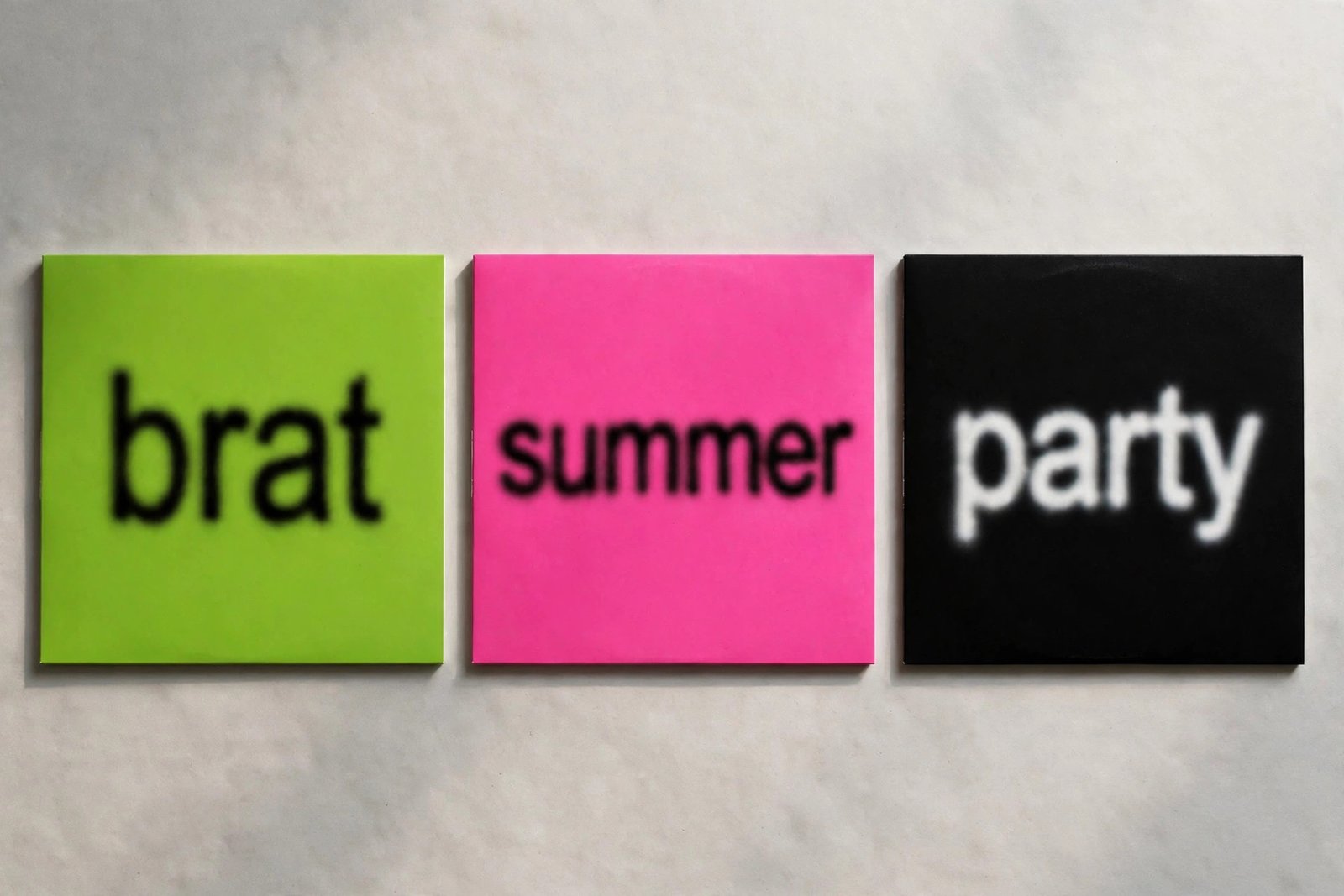
- Pick a background: the green preset is the classic, black with white text is the sleeper pick.
- Set the font weight around 600–700 and leave the font on Arial unless you have a reason to switch.
- Hit Download PNG for a 1080×1080 file, or Copy Image to paste it straight into a chat.
That’s it. If you want the slightly more considered version — the one that actually looks like the album — keep reading.
Getting the look right: the details that matter
After making a dozen of these, here’s what separates a cover that reads instantly as “brat” from one that just looks like a green square with text:
Keep it lowercase. The whole aesthetic is lowercase. The tool doesn’t force it, so type that way yourself. “brat summer” works; “Brat Summer” looks like a PowerPoint slide.
Short text wins. One to three words. The generator caps you at 50 characters, but the sweet spot is way below that — the blur and the proportions only work when the text has room to breathe. My test renders at 96px on a 1080px canvas, and anything past ~20 characters starts crowding.
The blur is the hard part. Here’s the thing nobody mentions: the signature brat look is slightly out of focus, and most free generators — this one included — don’t apply any blur at all. The text renders crisp. It still reads as brat-style because of the color and the font, but side by side with the real cover you can tell. Some competing tools let you dial blur from 0 to 7 pixels, which is the single feature I wish this one had. Workaround: screenshot the preview and add a tiny gaussian blur in any photo app. Two extra taps, same result.
Color discipline. The green (#8ACE00) is the meme. But the black-background version with white text is genuinely the better-looking option for profile pictures — it pops in a feed full of photos. Hot pink reads “party,” cyan reads “mixtape.” If you’re making a set (say, a carousel or a group chat’s worth of covers), pick one background and stick with it.
Watch me use it (real screen recording)
Rather than describe the clicks, here’s the actual tool in action — typing, recoloring, and downloading, recorded live in my browser:
Brat font generator vs. the alternatives I compared
I read through the top-ranking pages for “brat font generator” before writing this, and the honest summary is: most of them are thin. A paragraph of generic text, an embedded tool they didn’t build, no testing, no opinions. The few decent ones taught me what the good tools in this space offer that this one doesn’t — so here’s a straight comparison based on what I could verify.
What competing generators tend to offer: blur sliders (the 0.4–7px range shows up a lot, and it’s the real differentiator), text-stretch controls (the album’s type is horizontally squished — a surprising number of tools let you tune this), bigger font libraries (9 to 60+ options vs. this tool’s 3), export size choices (800px for quick memes up to 2000px+ for print), and one-tap social sharing. A couple even do the “brat green” color-match properly with the exact album hex.
Where this site’s brat font generator wins: speed and zero friction. No account, no watermark, no “HD download is premium.” The 1080×1080 export is exactly Instagram-post size, which is what 90% of people want anyway. The live preview is genuinely instant — some competitors re-render with a visible lag. And the border-radius slider is oddly practical: I didn’t expect to care about rounded corners until I imagined the cover as a profile picture, where it matters.
Where it loses: no blur control (the big one), no text stretch, three fonts, one export size, 50-character cap with no warning until you hit it. If you’re making a one-off meme, none of this matters. If you’re a designer mocking up merch, you’ll feel the limits fast.
My take after the testing: for free, no-signup, instant covers, it’s the fastest path from idea to downloaded PNG I found. For pixel-perfect album replicas, pair it with a photo app for the blur, or use one of the heavier tools and accept their signup walls.
What I’d change about this tool
Since this article lives on the same site as the generator, I’ll say it plainly — the wishlist, in order:
1. A blur slider. Even 0–3px. It’s the defining visual trait of the aesthetic and its absence is the first thing a fan notices.
2. More fonts, or at least Arial Narrow. Three system fonts is thin. One narrow grotesque would close most of the gap to the real cover.
3. A character-count warning. The 50-cap just silently eats your keystrokes. A little “you’re at the limit” nudge would save confusion.
4. Text stretch. Horizontal scale on the type, 80–120%. Cheap to implement, big visual payoff.
None of these are complaints about what exists — the core loop (type → tweak → download) is solid and I verified every step works. They’re the difference between a good free tool and the definitive one.
Using your covers: a few ideas
The obvious ones: profile pictures, phone wallpapers, Instagram posts. Less obvious: group-chat names rendered as covers and set as the chat photo (deeply funny for about a week), event flyers where the anti-design is the point, and merch mockups — the aesthetic prints well on shirts precisely because it’s so simple. If you’re on iPhone, the iOS guide walks through saving and setting covers from your phone; Android users have the Android guide. And if you haven’t yet, the full how-to-use walkthrough covers the basics, while the colors guide goes deeper on palettes beyond the classic green.
FAQ
Is the brat font generator free?
Yes — the one on this site is completely free, no account, no watermark on the 1080×1080 PNG download. I downloaded multiple covers during testing and never hit a paywall.
What font does the brat album actually use?
Something very close to Arial Narrow, rendered slightly blurry and a bit small on the cover. Most generators (this one included) approximate it with Arial or Helvetica at a medium-bold weight. Close enough for memes; not identical.
Why is the text blurry on the real cover?
It’s a deliberate lo-fi design choice — the slight blur is part of the anti-polish aesthetic. Most free tools don’t replicate it; add a small gaussian blur in any photo editor if you want the exact look.
Can I use my brat cover commercially?
The covers you generate are your images, but “brat” as an album aesthetic is Charli XCX’s trade dress — fine for personal memes and fan art, risky for actual merchandise. When in doubt, don’t sell it.
What’s the best size to export?
1080×1080 (what this tool gives you) is the Instagram/Twitter sweet spot. For wallpapers or print, you’d want bigger — that’s one of the tool’s current limits.
The bottom line
A brat font generator is a simple idea executed well here: type, tweak, download, no friction. I verified the whole loop with real files — the PNGs are clean 1080×1080 exports, the colors switch instantly, nothing is paywalled. It won’t give you the blur or the exact album typeface, and the font list is short, but for the thing 95% of people want — a funny green square with their words on it, in under a minute — it does the job better than most of the alternatives I looked at. Type something unhinged. Download it. Set it as your profile picture. That’s the whole point.