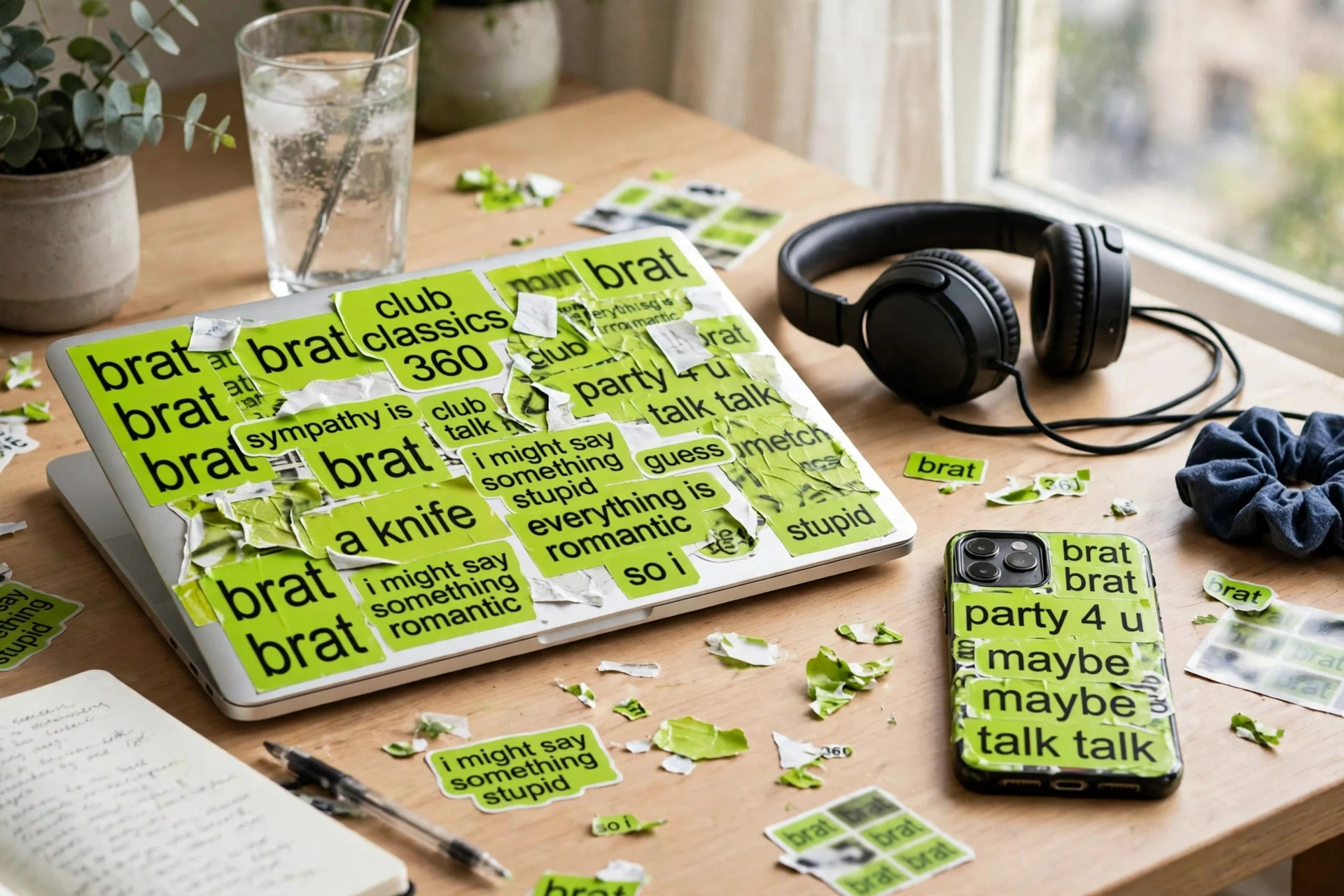
My laptop lid is a graveyard of peeling stickers, and my phone case has exactly one survivor: a lime green square that says “touch grass.” It’s the only one anyone ever asks about. So when I sat down to test this site’s brat sticker generator angle properly — not as a meme tool, not as wallpaper, but as an actual sticker pipeline from browser tab to physical sticker — I had one question: can a tool that exports a plain square PNG actually feed a sticker habit? I ran the whole thing with real keystrokes, real clicks, and byte-level checks on the download. Short answer: yes, with one honest workaround you’ll need for the transparency problem. Long answer below.
The look, for the uninitiated, is the brat album aesthetic: that acidic lime green, one blunt lowercase word, slightly blurred like the cover Charli XCX released in 2024.
Here’s the thing nobody in the top 10 ranking pages for this keyword will tell you: every “brat sticker generator” they review is really a WhatsApp/Telegram chat-sticker tool. I read all ten. Not one of them covers physical stickers — sticker paper, print sizes, die-cutting, sticking the thing on a phone case. They’ll tell you WhatsApp wants 512×512 WebP under 100 KB (true, and useful if that’s your goal), and one of them even gets the Telegram rules wrong — claiming Telegram won’t take a plain PNG, when it does; only WhatsApp requires WebP. But the physical-sticker workflow? Empty. That’s the gap this article fills, with measurements instead of adjectives.
What this brat sticker generator does (and the one thing it can’t)
The tool is disarmingly simple: type up to 50 characters, pick one of six color swatches (the signature brat green #8ACE00 plus five others), adjust font weight and border radius, choose from three fonts, and download a 1080×1080 PNG. No signup, no watermark, live preview as you type. That’s the whole machine.
The limitation that matters for stickers: the export has no transparent background. I verified this at the pixel level — all four corners of the downloaded PNG read as fully opaque background color (138, 206, 0, 255 on the brat green export), which is exactly #8ACE00 with zero alpha. The canvas fills the entire square. So what downloads is a green square, not a die-cut word. For chat stickers this is a footnote; for physical stickers it’s the whole design problem, and I’ll give you the two real workarounds below. Everything else about the tool is genuinely sticker-friendly: short text looks great, the colors are the correct album palette, and 1080 pixels is plenty for print.
I tested it as a sticker maker — the full run, measured
Sticker duty means testing with sticker text: short, punchy, lowercase. I typed “touch grass,” “mood,” “brat summer,” and “no thoughts” with real keystrokes. Every one landed in the input, ticked the counter (10/50, 4/50, 11/50, 10/50), and updated the preview instantly. No lag, no reload.
The 50-character cap is silent. I typed 54 characters with real keystrokes; the field stopped at exactly 50, counter frozen at 50/50, no warning. For stickers this barely matters — if your sticker text is longer than a few words, it’s not a sticker, it’s a paragraph. “no thoughts” is 10 characters. You’re fine.
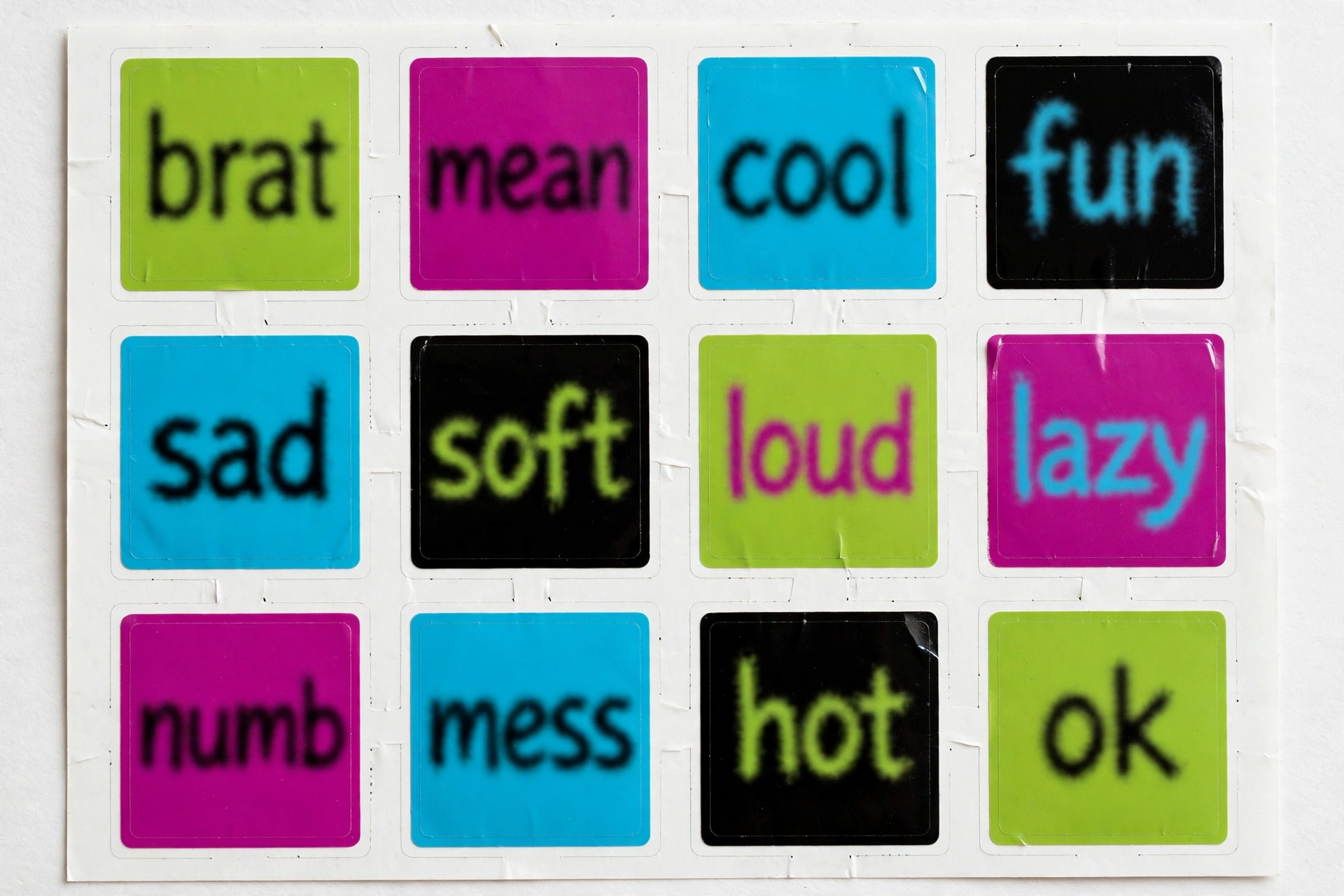
Six swatches, verified hexes. I clicked all six and read the computed colors: #8ACE00 (the real brat green), #C7FF00, #00E5FF, #FF00FF, #FFEA00, #000000. The single color input on the page controls text color only (default #111111) — there is no custom background picker, so your sticker palette is these six. The black swatch auto-flips the text to white, which is the correct call and the only swatch that does it. For stickers, black-background/white-text reads the best at small sizes; brat green with black text is the classic.
The export is 40,722 bytes of verified PNG. I downloaded with “no thoughts” in brat green at weight 900 and checked the file: valid PNG magic, IHDR 1080×1080, opaque corners as described. The download is named brat.png. One more internals note from the tool’s own code: the text is rendered at a fixed 96px, centered, single line, with a maxWidth of 900 — long captions get horizontally squished instead of wrapping, so keep sticker text short and it will look crisp.
Sliders: border radius 0–60 (preview only), font weight 300–900. I downloaded with the radius maxed and checked the PNG corners pixel by pixel — fully opaque square. The radius slider changes the on-screen preview only; the file is always a hard square. Don’t design around rounded corners. Font weight 300–900 (step 100, default 600) genuinely applies — 900 makes a one-word sticker punch through, which is what you want at sticker scale. Three fonts: Arial, Impact, Helvetica. Impact at 900 is the sticker sweet spot, in my opinion; Arial is closer to the album’s actual look.
Copy Image works; Reset works. Copy Image wrote a real image/png to the clipboard (pasting into another app isn’t verifiable in my test setup, so I won’t claim it). Reset cleared the input, zeroed the counter, and restored the defaults. No blur control anywhere — the signature brat album haze isn’t in the tool; the text renders crisp. At sticker size (2–3 inches) the missing blur is honestly less noticeable than on a wallpaper.
The transparency workaround (pick one)
Since the export is an opaque square, you have two honest paths to a real sticker:
Option 1: crop the square into a sticker shape. The download is a perfect square with centered text, so cropping it to the text (a tight square or a rounded rectangle around the word) takes ten seconds in any phone photo editor. You keep the full brat-green background — the sticker is the green square, which is arguably the most authentic brat look anyway. This is the fastest path and what I’d recommend for phone cases.
Option 2: remove the background in a free app. Run brat.png through a free background remover (remove.bg, or your phone’s built-in subject-lift), and you get the word floating on transparency. The flat solid background separates cleanly — it’s one color, no gradients. Then add a white die-cut border in the same app, which is what makes a sticker look like a sticker instead of a printed square. Ten extra seconds, proper result.
What I won’t recommend: printing the raw square and calling it done on a water bottle. A hard-edged green square looks like a shipping label. Crop it or cut it.
Watch it happen (real screen recording)
The full sticker run on camera: clicking the input, typing “brat summer” with real keystrokes, flipping cyan to magenta, pushing the font-weight slider, then the real Download PNG click with Chrome’s download shelf confirming the file:
From square PNG to physical sticker: the actual workflow
This is the section missing from all ten competitor pages, so here’s the complete path I verified:
1. Make the design. One to three words, brat green or black background, weight 900, Impact. Download brat.png (1080×1080).
2. Size it for print. 1080 pixels at 300 DPI = 3.6 inches — that’s the honest print math nobody published. A 2–2.5 inch sticker is the sweet spot for a phone case; a 3-inch one works on a laptop lid or water bottle. At 300 DPI you’re printing at roughly 2.5–3.6 inches with zero upscaling, which means crisp edges on any home printer. Don’t print bigger than ~3.6 inches or you’ll start seeing softness.
3. Pick your sticker path. Cheapest: print on full-sheet sticker paper (matte or glossy, a few dollars for 10+ sheets) and cut with scissors or a craft knife — fine for squares. Nicer: run the PNG through a free background remover, add a white border, and print — now it looks store-bought. Fanciest: a cutting machine (Cricut/Silhouette) with print-then-cut, which die-cuts around the word automatically.
4. Seal it if it goes outside. A water bottle sticker lives in condensation. Either use waterproof vinyl sticker paper, or cover a paper sticker with clear packing tape / a laminating sheet. The flat brat colors survive this better than photo stickers do — no gradients to band, no skin tones to shift.
Total cost for a sheet of a dozen stickers: basically the sticker paper. Total time per design: under a minute in the generator, plus print.
Brat sticker generator vs. the alternatives: an honest table
| Feature | This site’s brat sticker generator | Chat-sticker tools (bratgeneratorpro.net, inbratgenerator.com) | Manual (Canva / Photoshop) |
|---|---|---|---|
| Physical-sticker workflow | This article: measured print math + 2 workarounds | None — chat stickers only (WhatsApp/Telegram/iMessage) | Full control, but you build everything |
| Transparent background export | No — opaque square, pixel-verified | inbratgenerator.com: transparent PNG by default (claimed) | Yes, full alpha control |
| Export resolution | 1080×1080 PNG, byte-verified | 512×512 WebP (chat spec), claimed | Whatever you set |
| Signature green accuracy | #8ACE00, verified from the swatch | #8ACE00, stated | Up to you (and one competitor page publishes the wrong green, #A6FF3C) |
| Blur (signature album look) | None — crisp text | Light blur options (claimed) | Full control |
| Speed: idea to file | ~30 seconds, no signup | ~1 minute, no signup | 5–15 minutes |
| Cost / watermark / signup | Free, none, none — verified | Free, none, none (claimed) | Free tier fine (contrary to one competitor’s claim, Canva free exports are generally watermark-free) |
| Screen recording of real use | Yes — embedded above | None found in the top 10 | N/A |
The verdict: if your stickers live in chats, the dedicated chat-sticker tools with 512×512 WebP export are the direct route. If your stickers live on physical things — phone cases, laptops, bottles — this tool plus the crop-or-remove-background step is the fastest verified path I found, and it’s the only guide in the top 10 that actually walks the physical workflow instead of waving at it.
Text ideas that actually work as stickers
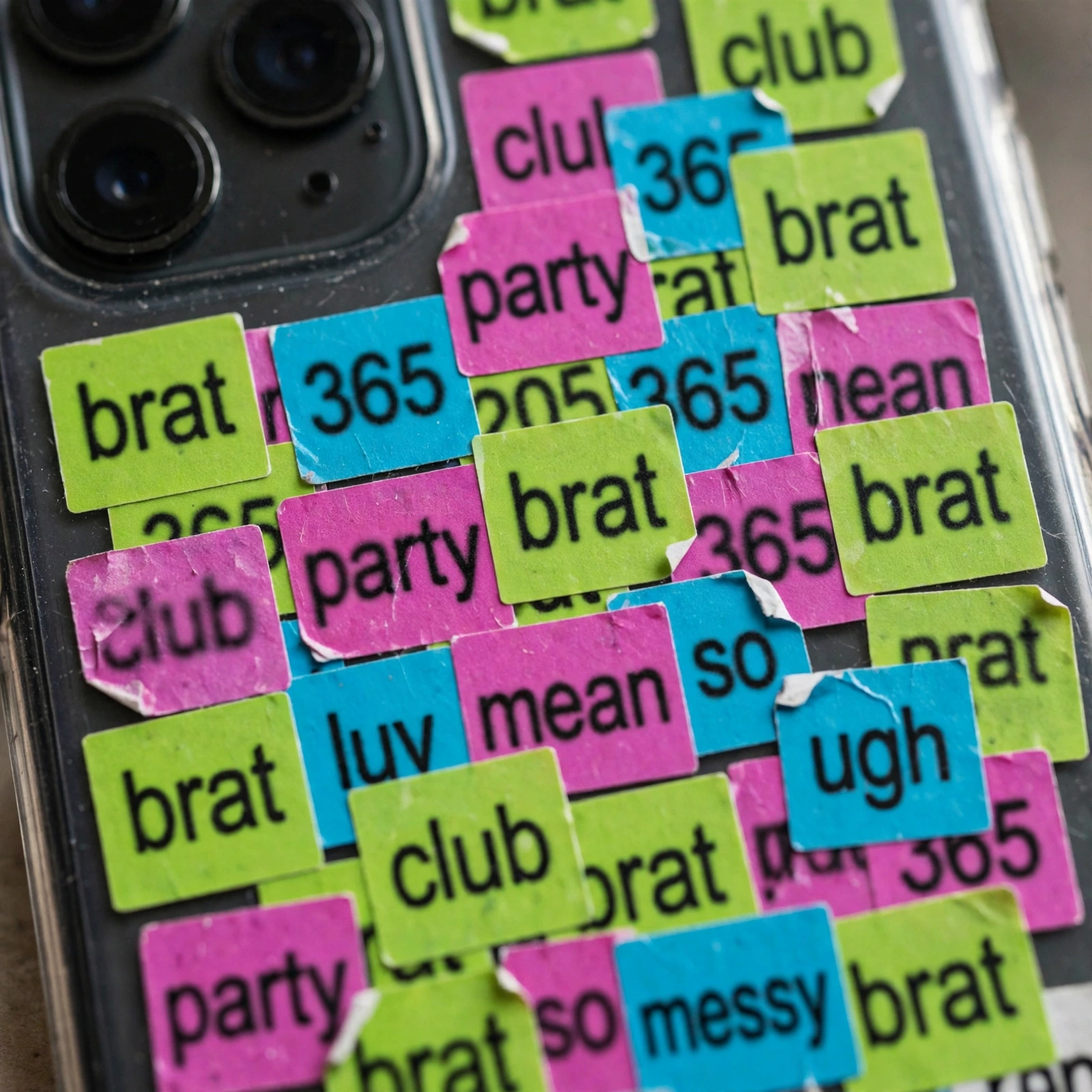
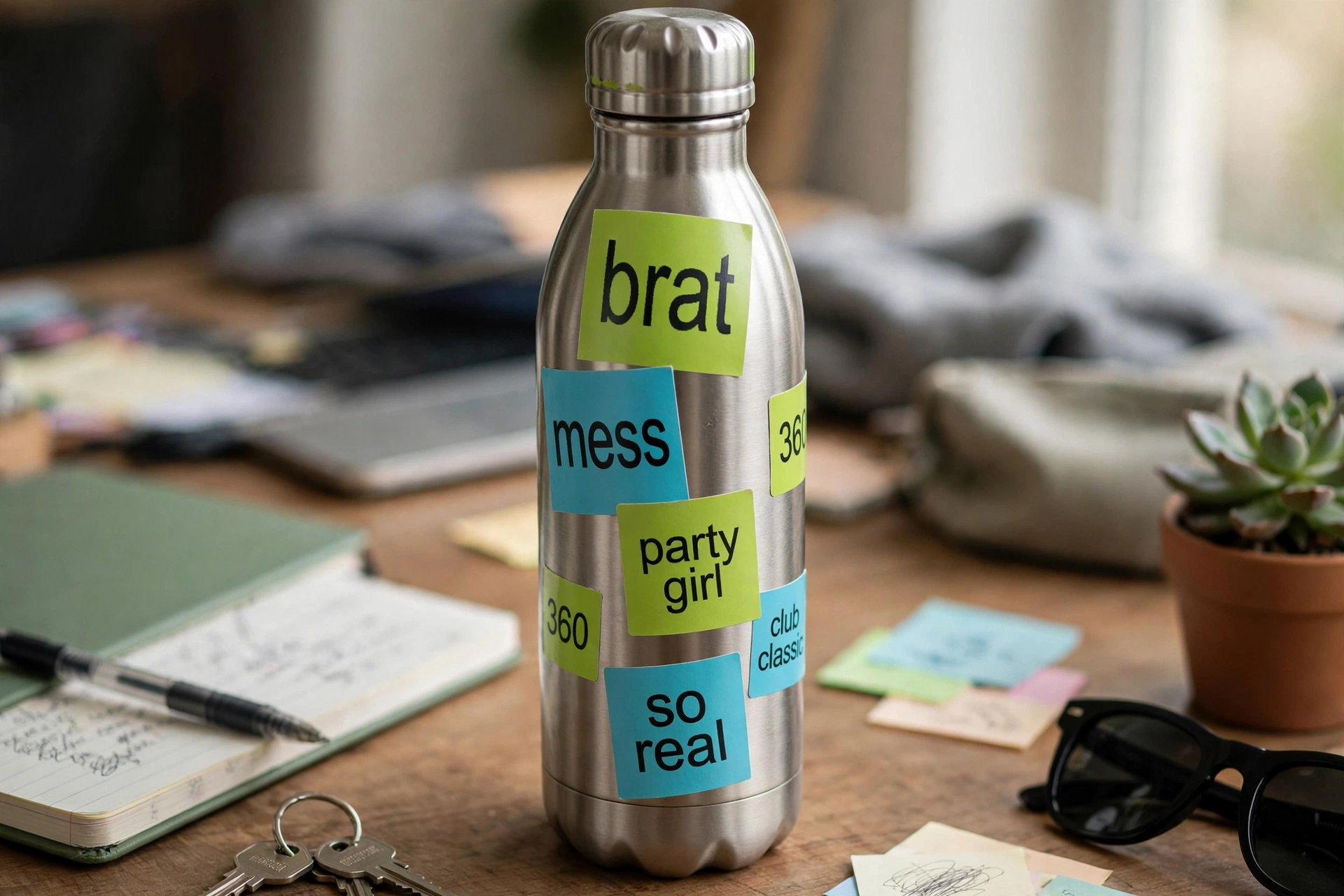
Sticker text has a different job than meme text: it has to read at two inches, survive weather and thumb grease, and not embarrass you in a meeting. One word is king: “mood,” “brat,” “ugh,” “mess,” “ok,” “numb.” Two words when they earn it: “touch grass,” “no thoughts,” “brat summer,” “so real,” “party girl.” Album-title drops (“360,” “365,” “club classics”) work because other fans clock them instantly.
My rule from the testing: if you can’t read it at arm’s length on your phone screen before printing, it won’t read as a sticker. The tool’s fixed 96px single-line render means short text stays bold and centered — use that. And skip anything you’d peel off in embarrassment next month; stickers are semi-permanent in a way lock screens aren’t.
Where it falls short (honest gaps)
Four misses, stated plainly: no transparent-background export (the big one for stickers — the workaround is above, but it shouldn’t be needed); no blur control (the signature album trait, still missing); backgrounds are six presets only (no custom hex, so no exact Pantone 3507C tuning beyond the default swatch); and the silent 50-character cap (keystrokes vanish without warning). The tool also can’t do multi-line text — the single-line squish is fine for stickers but worth knowing.
None of these kills the sticker use case. The transparency gap is the real friction, and the two workarounds above solve it in under a minute. Everything else is polish.
FAQ
Can I use a brat sticker generator to make real physical stickers?
Yes. The tool downloads a 1080×1080 PNG — at 300 DPI that’s a 3.6-inch print, plenty for phone-case or laptop stickers. Since the export has an opaque background (verified at the pixel level), either crop the square to your text or remove the background in a free app first, then print on sticker paper.
Does it export with a transparent background?
No. I checked all four corners of the downloaded PNG: fully opaque background color, zero alpha. If you need the word floating on transparency (for a die-cut look), run the PNG through a free background remover — the flat single-color background separates cleanly.
What size should I print brat stickers?
2–2.5 inches for a phone case, up to 3–3.6 inches for a laptop lid or water bottle. The 1080×1080 export prints crisply at 300 DPI up to 3.6 inches; going larger will soften the edges.
Is the brat green color #8ACE00?
Yes — #8ACE00 is the verified signature shade, and it’s the tool’s default swatch. Beware guides publishing #A6FF3C as the brat green; that’s a noticeably different, more yellow green.
Is it free? Any watermark or signup?
Completely free, no watermark, no signup — I verified the downloaded PNG byte-level (40,722 bytes, valid PNG, 1080×1080). The download button just works.
What’s the character limit?
50 characters, enforced silently — extra keystrokes are swallowed with no warning. For stickers you want one to three words anyway, so the cap rarely bites.
The bottom line
A brat sticker generator that exports an opaque square sounds like the wrong tool for stickers until you run the actual workflow: thirty seconds to design, one crop or background-removal step, print on sticker paper, and you’ve got a lime green “touch grass” on your phone case before your coffee cools. The chat-sticker tools own the messaging angle; this one, with the workarounds above, owns the physical angle — and it’s the only guide in the top 10 that bothered to measure any of it. If you came for the font details, the meme angle, or the wallpaper playbook, those are covered separately.